
About the app
It is free to download and allows you to easily and quickly search for journeys, find timetables and buy tickets.
To be able to make purchases in our app, you need to download it from your app store.
If you choose to buy your single ticket via the app, you get a discounted price compared to if you buy a single ticket on board the bus with a bank card.
See your bus or train live in the app
You can now see where your bus or train is on the map in the app. This makes it easier to plan your journey. The live map gives you a better view of public transport and helps you stay updated during your journey.
What you can do
- Search for a journey and follow the vehicle on the map.
- Find a route or stop and see where the vehicles are.
- See all buses and trains currently in service.
- Know when your bus is getting close to your stop.
You can find the map under the tab Search and buy journey. Search for your journey, choose an option, and you will see the map at the bottom. You can also go to the Stops tab in the same window to see the map at the bottom. To make the map bigger, tap on it to open it in full screen. The map works like a normal digital map.
Different vehicles have different colours to help you find the right service.
🟢 Green = City Line bus
🟢 Dark green = Town bus
🔵 Blue = Regional bus
🟠 Orange = Express bus
🔷 Dark blue = Train
The arrow shows the direction the bus is travelling.
Check if the vehicle is on time
The triangle colours show if the service is running on time:
🟢 Green = On time
🔵 Blue = Early
🔴 Red = Delayed
If the map is difficult to see, you can open it in full-screen mode in the app.
If you have any questions, comments or suggestions, please contact Customer Services using our online form.
You can buy these tickets in the app
You can buy a ticket for:
-
- County
- One district and two districts
- City Lindesberg or Örebro
- Municipality Karlskoga
Regardless of which ticket you choose to buy via the app, it is activated immediately upon purchase. The ticket is valid for the selected time validity starting from the time of purchase. Buy your ticket before boarding the bus.
How to buy tickets in the app
-
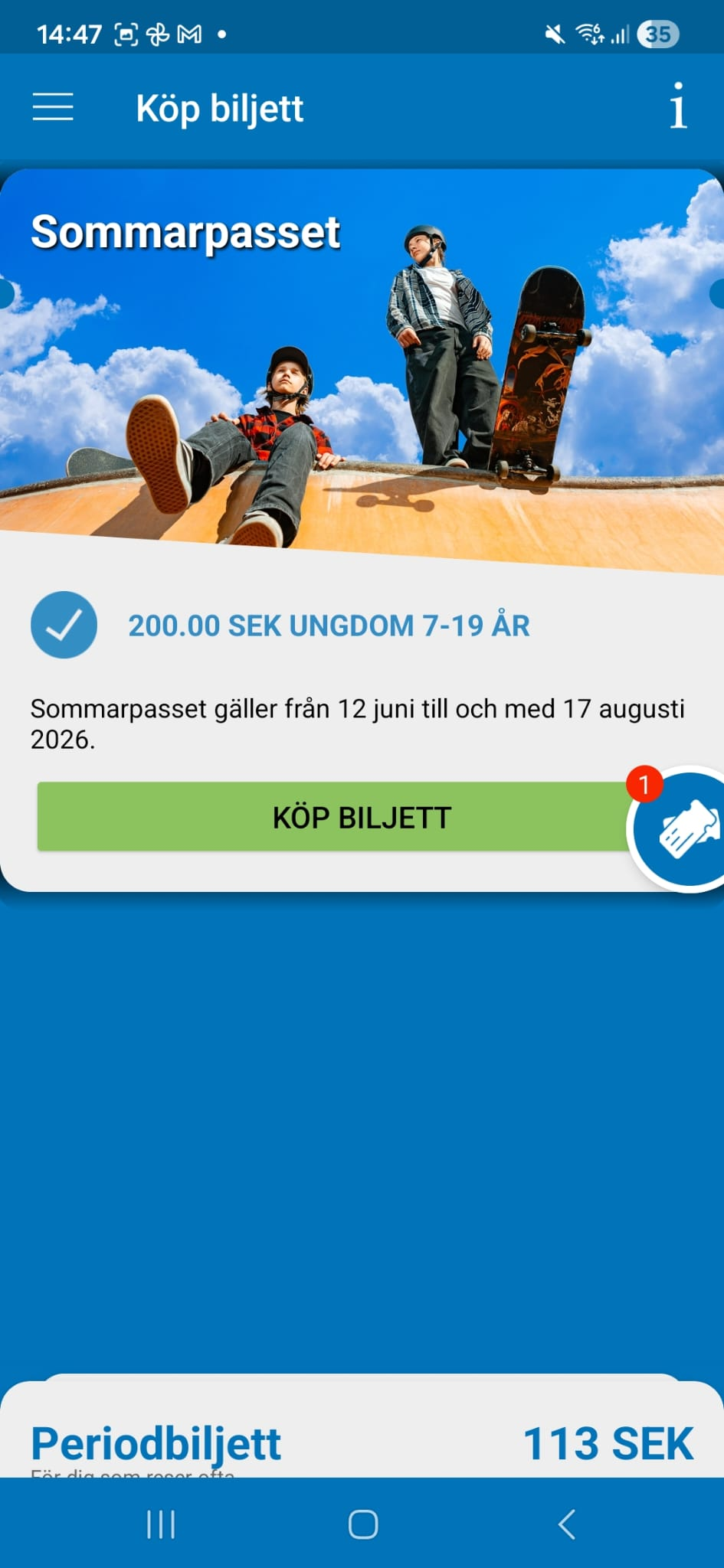
Buy Sommarpasset in the app
How to create an account
A film is coming later today. (In Swedish)How to buy Sommarpasset
- Open the app
- Select Buy ticket
- Tap Sommarpasset
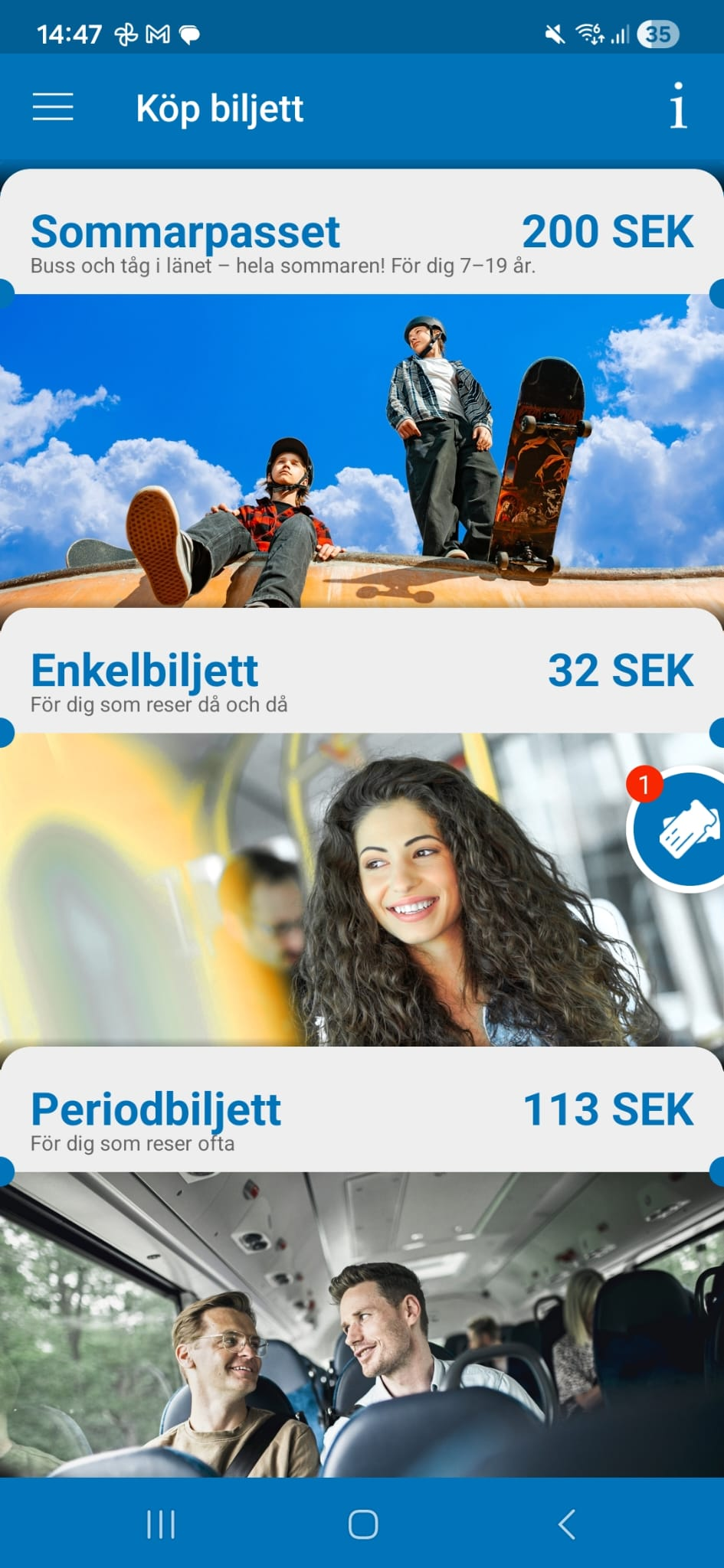
- Tap Buy ticket
- Pay
- Done
-
Buy a single ticket in the app
About single tickets in the app
Single tickets bought in the app cost less than tickets bought on the bus.
Your ticket becomes valid as soon as you buy it. Make sure you buy your ticket before you board the bus.Buy a singel ticket in the app
You can buy a single ticket in two ways. The option you choose depends on where you are travelling.
- "Search and buy" a journey: Use this option for regional bus journeys and journeys within Karlskoga, Lindesberg or Örebro.
- "Buy a ticket": Use this option for journeys within Karlskoga, Lindesberg or Örebro
Buy a ticket using "Search and buy" a journey
Follow these steps to buy a single ticket using "Search and buy a journey":
- Choose the bus stops you want to travel between.
- A single ticket for Karlskoga, Lindesberg or Örebro can be used anywhere within the town and valid for 1 hour. A regional bus ticket is valid between the bus stops you choose.
- Choose your departure time.
- Tap "Search journey".
- Select the journey you want.
- You can buy your ticket from 20 minutes before departure.
To change ticket type, tap Price and quantity.
- You can buy your ticket from 20 minutes before departure.
- Choose a ticket type:
- Adult
- Youth
- Family
- Student
- Choose how many tickets you want. You can buy up to five tickets at a time.
- Tap "Buy ticket".
- Check that the details are correct.
- Choose a payment method.
-
Follow the instructions and complete your purchase.
- Scan your ticket when you get on the bus.
Buy a ticket using "Buy ticket"
This video shows how to buy a single ticket in the app. it is in Swedish.- Tap "Single ticket".
- This option is for travel within Karlskoga, Lindesberg or Örebro. A single ticket is valid for 1 hour and can be used anywhere within the town you selected.
- If you have bought a ticket before, your details will already be filled in.
- Choose the town where you want to travel.
- Choose a ticket type:
- Adult
- Youth
- Family
- Student
- Choose how many tickets you want. You can buy up to five tickets at a time.
- Tap "Done".
- Tap "Buy ticket".
- Check that the details are correct.
- Choose a payment method.
-
Follow the instructions and complete your purchase.
- Scan your ticket when you get on the bus.
Important
Your ticket becomes valid as soon as you buy it. -
Buy a season ticket in the app
How to buy a season ticket in the app
You can buy season tickets in the app through "Buy ticket". To buy a season ticket, you must first create an account.
This video shows how to buy a season ticket in the app.
- Select Season ticket from the list.
- If you have bought a ticket before, your details will be filled in automatically.
- Choose the area where you want to travel.
- Choose a validity period:
- 24 hours
- 30 days
- 30-day off-peak
- Tap "Buy ticket".
- Check that all details are correct.
- Choose a payment method.
-
Follow the instructions.
-
- Tap "Complete purchase".
- Scan your ticket when you get on the bus.
Important
Your ticket becomes valid as soon as you buy it.
- Select Season ticket from the list.
-
Pay for your ticket
You can choose from several payment methods in our app. Choose a payment method before you travel. You can change your payment method at any time.
The following payment methods are available in the app:
- Swish
- Debit or credit card
- Klarna
- Pay within 14 days
- Pay later – an invoice fee applies.
 Borrowing money costs money
If you choose to pay with a credit card or Klarna in our app, you may not be able to pay the credit or invoice later. If you do not pay your debt on time, this may affect your credit rating. It may then be more difficult to rent a home, sign up for services or take out a new loan. If you need help, contact the budget and debt advice service in your municipality.
Contact details to the Swedish Consumer Agency website. Only in Swedish
-
Tickets when you change your phone
If you sign in to your account on a different phone, it will take 24 hours before your ticket becomes available. This helps protect your ticket from unauthorised use.
Please plan ahead to make sure you always have access to your ticket.
Scan your journey
You need to scan your ticket every time you board a bus and before you get on a train.
In the app, you can find your current tickets by:
- Tapping "More" in the menu
- Selecting "Tickets"
- Tapping the ticket you want to use for your journey
You must be logged in to view your period tickets. Be sure to have your ticket ready before you board the bus or train.
-
Scan on board a city bus in Örebro and Citylinjen
On our city buses in Örebro, you can scan your ticket either with the driver or in the ticket reader on the bus. If you're travelling with Citylinjen, you can board through any door and scan your ticket there.
When scanning your ticket with the driver, hold your phone vertically with the QR code facing the reader. Keep it there until you see a confirmation on the ticket reader and hear a beep. You don't need to inform the driver or press anything before scanning your ticket.
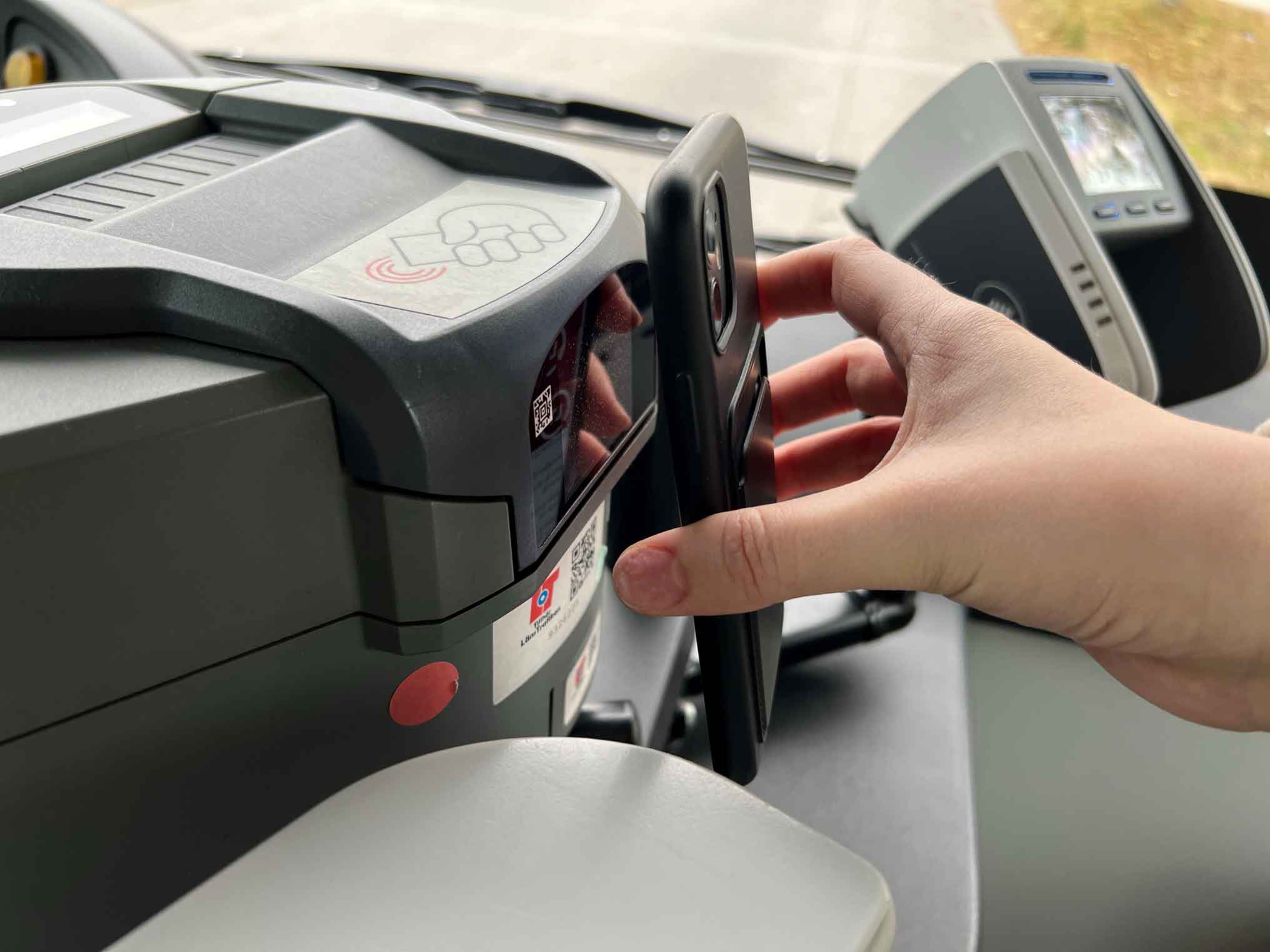
When scanning your ticket in one of the ticket readers on the bus, hold the ticket horizontally under the reader. Position it against the heel, with the QR code facing up toward the reader. You don’t need to press anything before scanning the ticket. Keep your phone against the reader until you see a smiley face on the screen. The scan will then be approved.
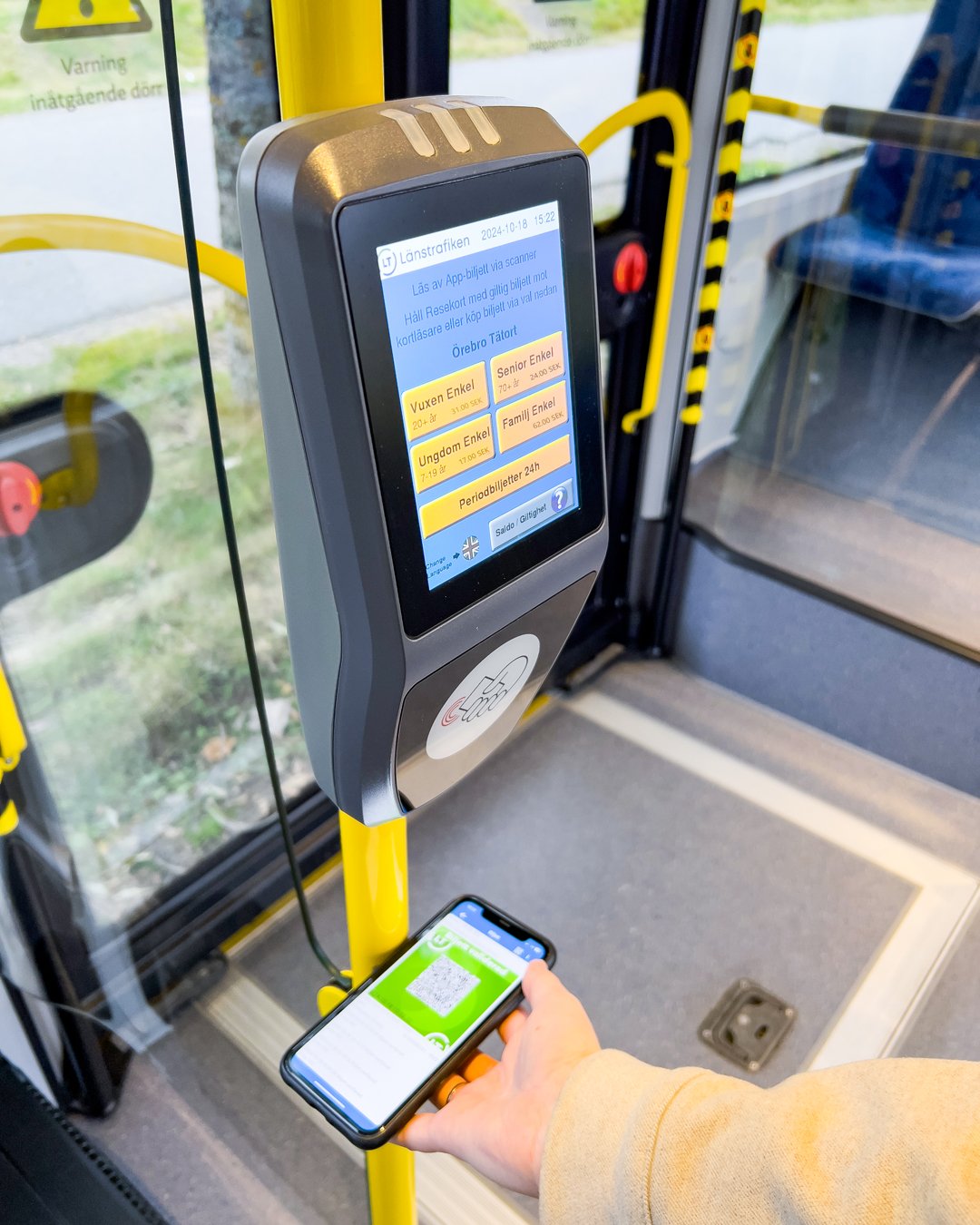
-
Scan on board a city buss in Karlskoga or Lindesberg
On our city buses in Karlskoga and Lindesberg, you can scan your ticket with the driver. When scanning your ticket with the driver, hold your phone vertically with the QR code facing the reader. Keep it there until you see a confirmation on the ticket reader and hear a beep. You don't need to inform the driver or press anything before scanning your ticket.
-
App - Scan on board a regional- or express bus
On our regional and express buses, you can scan your ticket with the driver. Hold your phone vertically with the QR code facing the reader. Keep it there until you see a message on the ticket reader saying that the ticket is approved and you hear a beep. You don't need to inform the driver or press anything before scanning your ticket.
-
Scan before boarding a train
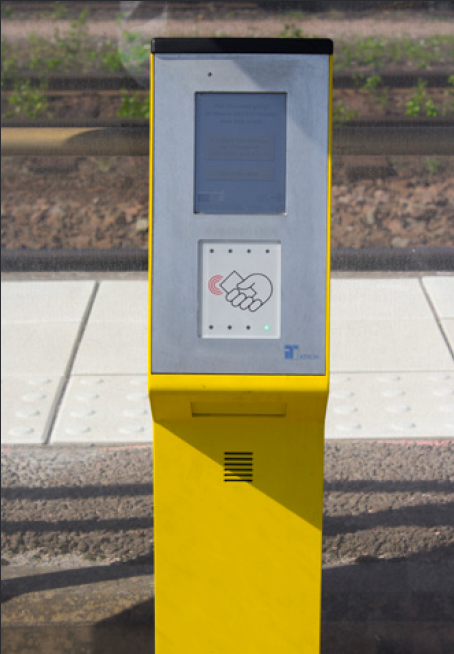
If you already have a ticket, you need to scan it in one of the yellow ticket machines on the platforms. Do this before boarding the train.
You will either need to show your ticket's QR code to be scanned by the onboard staff or allow them to check the ticket's details manually. The onboard staff will ask you to show your ticket.
-
Scan when travelling with Närtrafik
When travelling with Närtrafik, show your ticket in the app to the driver when they pick you up.
-
Across the boarder
If you are travelling with a ticket in the app, simply show it to the onboard staff for scanning or inspection.
-
Broken ticket machine
If the ticket machine onboard the bus is broken, try another machine or show your ticket to the driver. If you are traveling with a travel card, please bring the purchase receipt and show it to the driver.
If a ticket machine at the platform is broken, you can use one of the others available at the station.
Terms of purchase and terms of use for the app
By using and making purchases in our app, you agree to our terms of purchase and terms of use for the app. Please read the terms and conditions before using the app.
Get on for half price
Right now, half-price 30-day tickets